


I am generally willing to try out Obsidian plugins that provide a simpler way to do something I already do with kludges.
For example, I employ Daily and Weekly notes — a part of the Periodic Notes system — as the backbone of my approach to interstitial journaling. In a nutshell, I have been creating sections in Daily notes for various things I do during each day: I add headings (marked with a project name and a time stamp), tasks, discussions, and links to other notes. Below is a screenshot of part of a Daily note with several journal entries. Many of these are •short takes tasks (for my Short Takes series on workfutures.io) generated by the Obsidian official web clipper, and one is a manually created list of links to quotes I created that day.
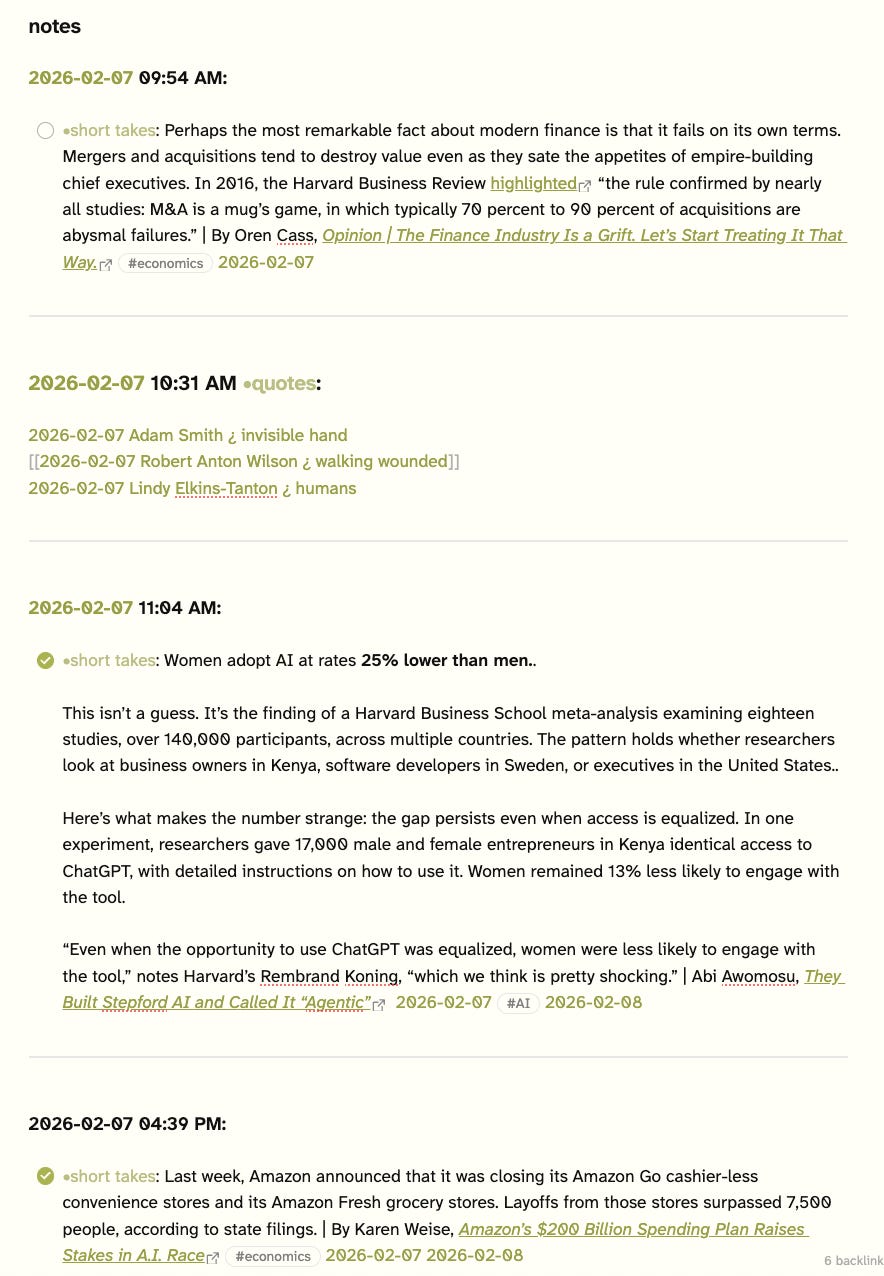
The manually created list of links is a good starting point for why I decided to take a first look at a new plugin, Obsidian Moments (now in beta). Here’s how the developer behind it — Matt McManus — describes it [emphasis mine]:
Why Moments?
Daily and periodic notes are a great starting point for date-based organization, but they’re not always enough. Meeting notes about a project belong in the project file. Events deserve their own documents. Research updates live with the research. In practice, dated content ends up spread across your vault — and no single note captures the full picture of what happened on a given day.
Moments evolves the idea. Instead of putting everything in one place, keep notes where they naturally belong and let Moments weave them into a unified timeline.
This motivation — to create and manage notes (and notes’ sections) ‘where they naturally belong’ — is how I have been managing projects already: I create tasks associated with projects in Daily notes and other notes, and rely on other plugins to aggregate those tasks from wherever they are to a single place. (In recent months, I have heavily relied on the Task List Kanban plugin (see First Look: The Task List Kanban) which is designed around a similar ‘where they naturally belong’ principle. Note: this is a departure from the no-longer-maintained Kanban plugin (which I wrote about in Card-Based Writing in Obsidian Using Kanban), which relies on creating notes in specific folders.)
How Moments Works
After installing and enabling the plugin (as a beta plugin, you must use Brat or some other mechanism to install betas), there are options. Here’s my configuration in two parts. Top part:
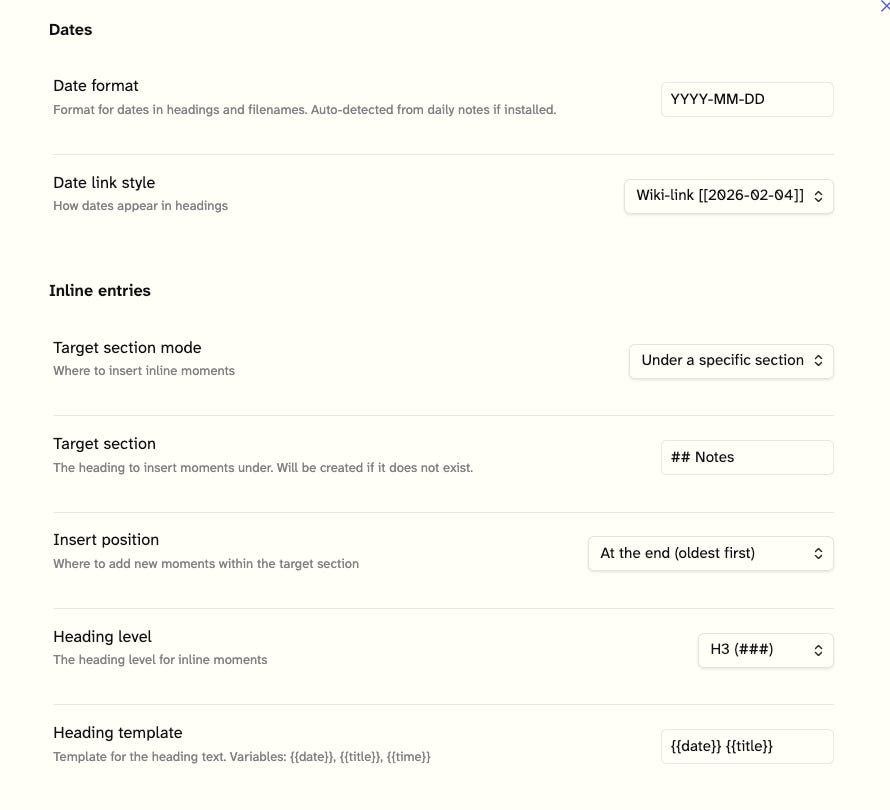
I stuck with the default date format because I was using it already across a wide range of purposes. Likewise, the date link style.
I selected ## Notes as the target section, again, because I already had that section in my Daily Note template. I want to follow my existing journaling style, and append new material at the end (as I set up for the official Obsidian Web Clipper). New ‘moments’ will be H3 headings, with {{date}} {{title}} heading content.
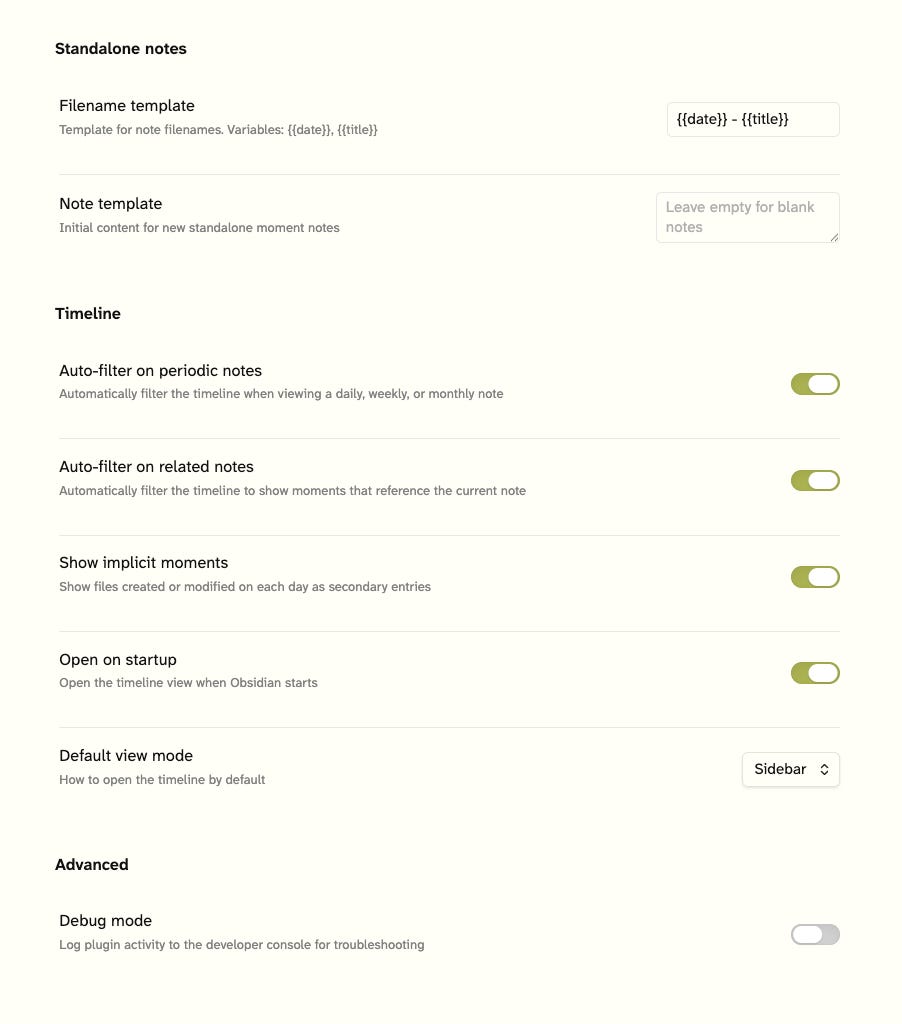
Second part:
The Moments Timeline
One of the best reasons to adopt moments is the timeline, which is a sidebar view of either a/ all the moments associated with the open note (the default), or b/ all the moments ordered by date.
Here’s a section of the timeline for 2026-02-15:
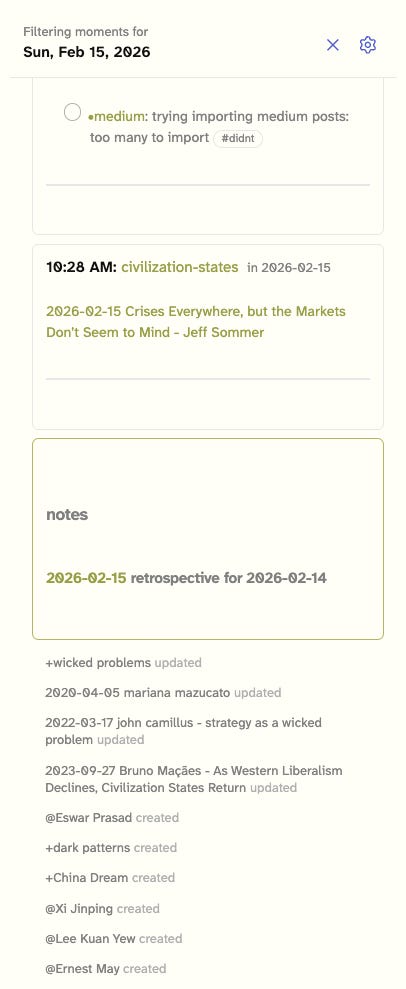
The top entries in boxes are explicit moment I created in the associated Daily Note, about which I will describe next. The bottom entries, like wicked problems updated, are creations and updatings on 2026-02-15 of other files in my vault.
The heading of the timeline includes an X which toggles to showing the entire timeline for my vault, starting with the present date, and stretching back to my oldest files.
Creating Moments
I have configured moments to append new entries to the end of the associated Daily Note. Running the command looks like this:
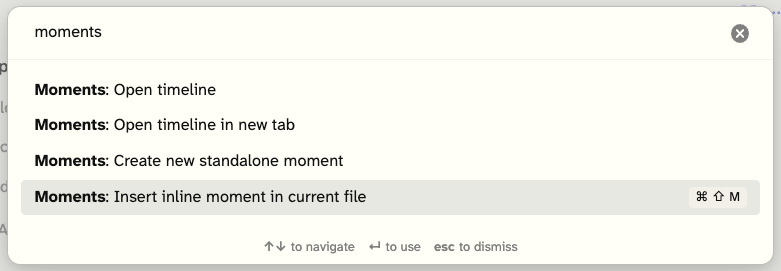
When selected the Insert inline moment in current file option, I get this:
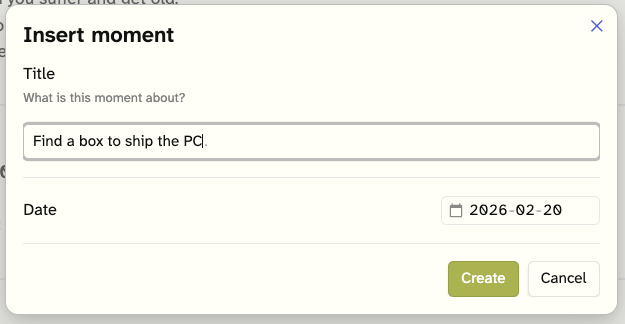
Which leads to a new moment in the associated Daily Note:
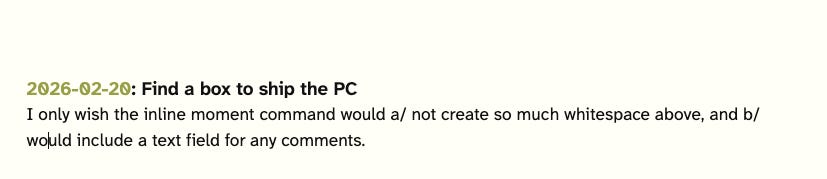
I only wish the inline moment command would a/ not create so much whitespace above, and b/ would include a text field for any comments.
Note that the date field is editable, but if modified, the entry stilll appears in the current file.
This also shows up in the timeline, as well.
Other capabilities
I haven’t explored the other command options yet, except to test Create new standalone moment which creates a new note and inserts a moment in it.
I believe my principle use case will be an augmentation of managing the flow of entries into my Daily Notes, and using the timeline as a way to see what I’ve been working on over time. I am already eager to see if the plugin developer will add a search feature to the timeline, so that I can more easily jump to a/ file updates, b/ specific days, and c/ all entries with specific keywords.
Bottom Line
I believe moments will be an enormous benefit to my interstitial journaling.
Interesting plugin. It would be great if all such notes were built into the daily notes.