
Task List Kanban, Revisited
Task List Kanban has rapidly evolved into the Obsidian task management solution of my dreams.

I first wrote about the Task List Kanban (TLK) plugin for Obsidian in a first look post in August of 2025 (and a few times since):

In the year since, TLK has rapidly evolved into a quite different platform for task management. As just one measure, in a year the plugin has moved from release 1.2.9 to 2.13.0; more than a hundred updates have been made. Here’s the github.
I won’t go into a full description of all the ways that TLK can be used, I just want to focus on a short list of new features that make it extraordinarily aligned with how I have been hoping to manage tasks in Obsidian. I confess I have been in close cooperation with EricaRS, who is actively maintaining the plugin, and requested the features I will be writing about, here.
As I said, I am putting to one side some of the features that others might want in a task management plugin, like integration with the Tasks plugin and Dataview, and approaches that rely on the use of tags to denote task status.
I personally do not want to adopt those, although for the past year I was using the tags approach, since my dream solution wasn’t implemented. But now it is:
Status marker matching: configure a column to match an active checkbox marker such as unchecked
[ ], in-progress[/], or blocked[!]. Moving a task into that column updates the checkbox marker.
Hooray! (Although I am using [!] to denote urgent or high-priority tasks, not blocked ones, as you will see.)
How I Use Task List Kanban, Now
My hope has been that TLK would someday support status-marker-based task management. That means that now I can indicate the status of a task simply by using task status markers, and without additional task annotations, like tags, inline metadata, or other (to me) extraneous text. I also spread my task definitions all over: in daily, weekly, and monthly notes, imported articles, and notes that I create in my journaling. So I rely heavily on TLK’s ability to search across my entire vault.
Here is a screenshot of how I have defined those task status markers in TLK, in the default setting for TLK kanbans:
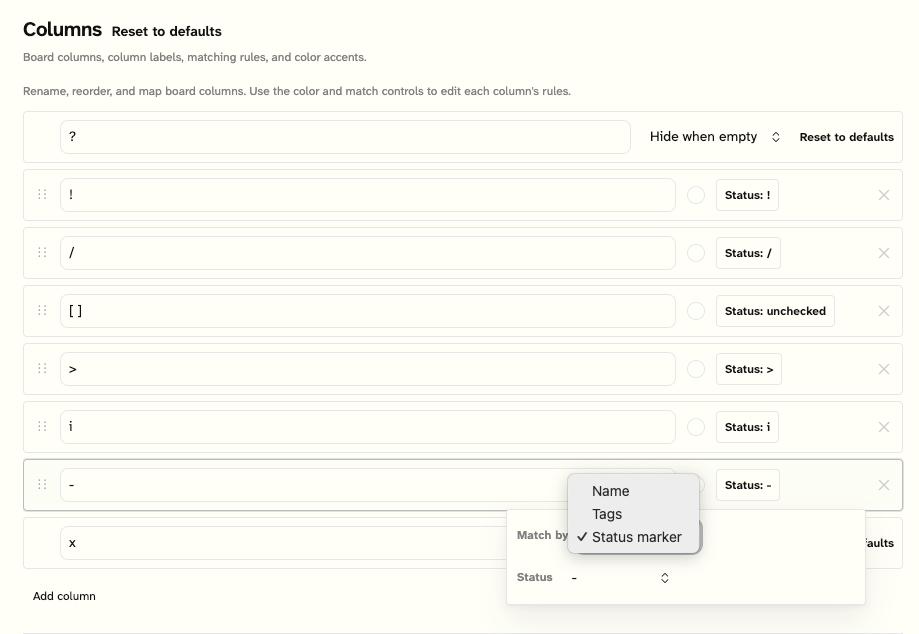
I use [ ] to denote a basic default task — - [ ] — because the tool doesn’t accept a blank as a column name.
At the bottom, the pop-up shows I have selected to use status marker as the column heading for the column named ‘x’. Here’s what the markers mean in my use:
Active Tasks
? — questionable. Do I want to actually do something with this? If so, I should probably move it to another status. Basically an inbox.
! — urgent/high priority. Something I should deal with soon, because it’s important, timely, or topical.
/ — open/in progress. An open task that I have started to deal with, but not of the highest urgency. For example, I’ve imported an article and started to read it (previously ? or [ ] status), but I haven’t completed by reading or written it up.
[ ] — open/haven’t started yet. A task that is open — meaning I’ve decided it’s a worthwhile thing to do, but haven’t begun real work on.
Inactive Tasks
> — waiting. A task that is blocked, such as when I decide I need additional information or some other task to complete before proceeding.
i — informational. Likely a formerly active task that is retained for informational reasons, like references.
- — cancelled. A task that was started, and for any of a host of reasons, was dropped.
x — completed/closed. Some task that is now closed. (Note: TLK supports the idea of an archived task, but that is currently denoted with a tag, #archived, but I hope to implement with an additional task status marker.)
How It Begins
Once the settings are settled, my workflow is often based on materials I clip, or ideas that occur to me. Here’s the prologue of an article I clipped and annotated:
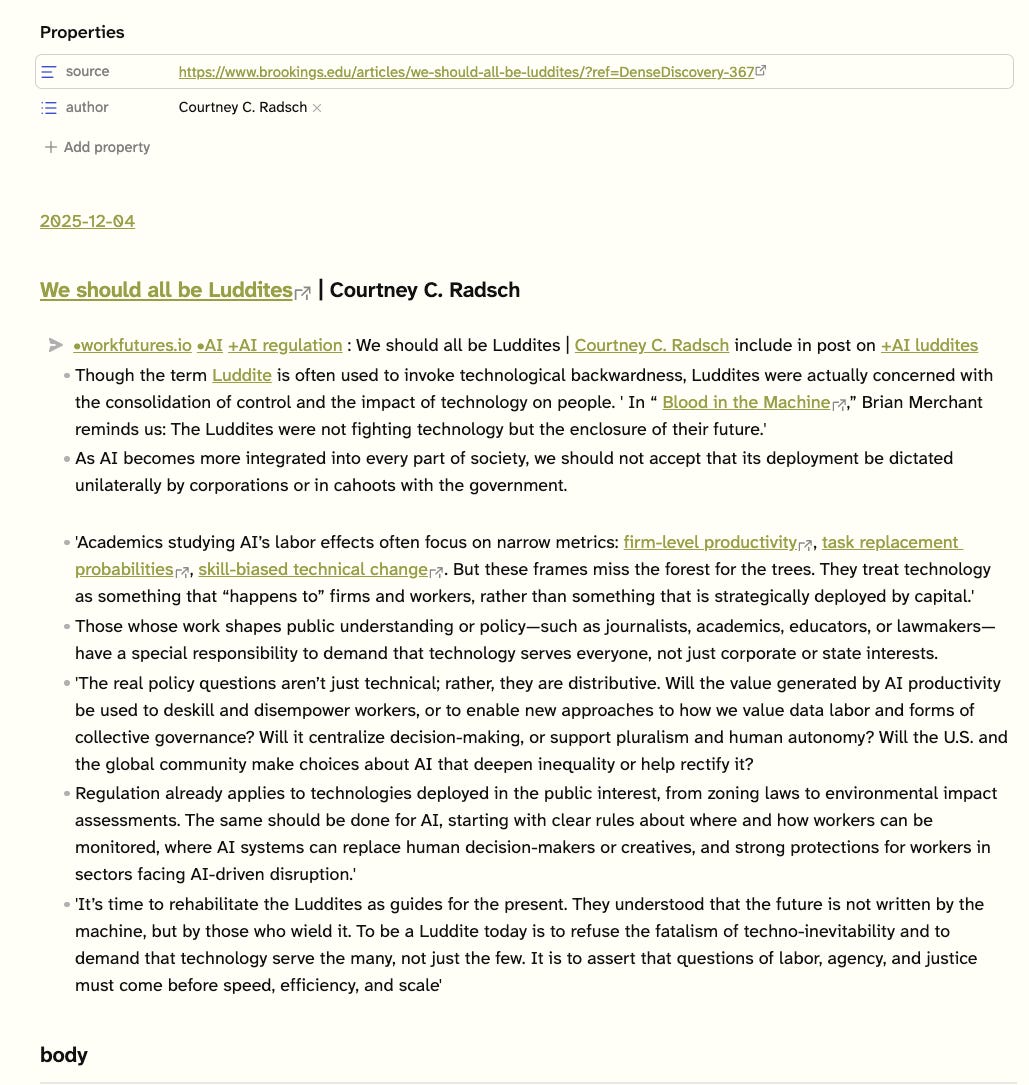
Note that TLK treats as subtasks any text following the task definition, so long as it is a list element with two leading blanks, including bulleted list elements. I’ll return to this feature, below.
A Taste of Folio
A brief introduction to Folio, my approach to notetaking sensemaking (note I am not claiming second brains or zettlekastening). This import relies on the Obsidian Web Clipper, but I will spare you the templating involved.
The header has a link back to the original article, and the author(s) name(s).
The task definition is the second line, which in source mode looks like this:
- [>] [[•workfutures.io]] [[•AI]] [[+AI regulation]] : We should all be Luddites | [[@Courtney C. Radsch|Courtney C. Radsch]] include in post on [[+AI luddites]]
The task prefix indicates this task is blocked, waiting for something. The wikilink [[•workfutures.io]] links the task to the workfutures.io project (denoted by the project prefix, •). Likewise, the task is also linked to the •AI project, and the +AI regulation and +AI luddites concepts (using the concepts prefix, +). All of these can be used to filter tasks in TLK kanbans. Projects, concepts and several other taxa are used in the Folio ontology of knowledge (see Folio 2026.1).
How It Works In TLK Kanbans
Here’s a kanban called workfutures.io status.
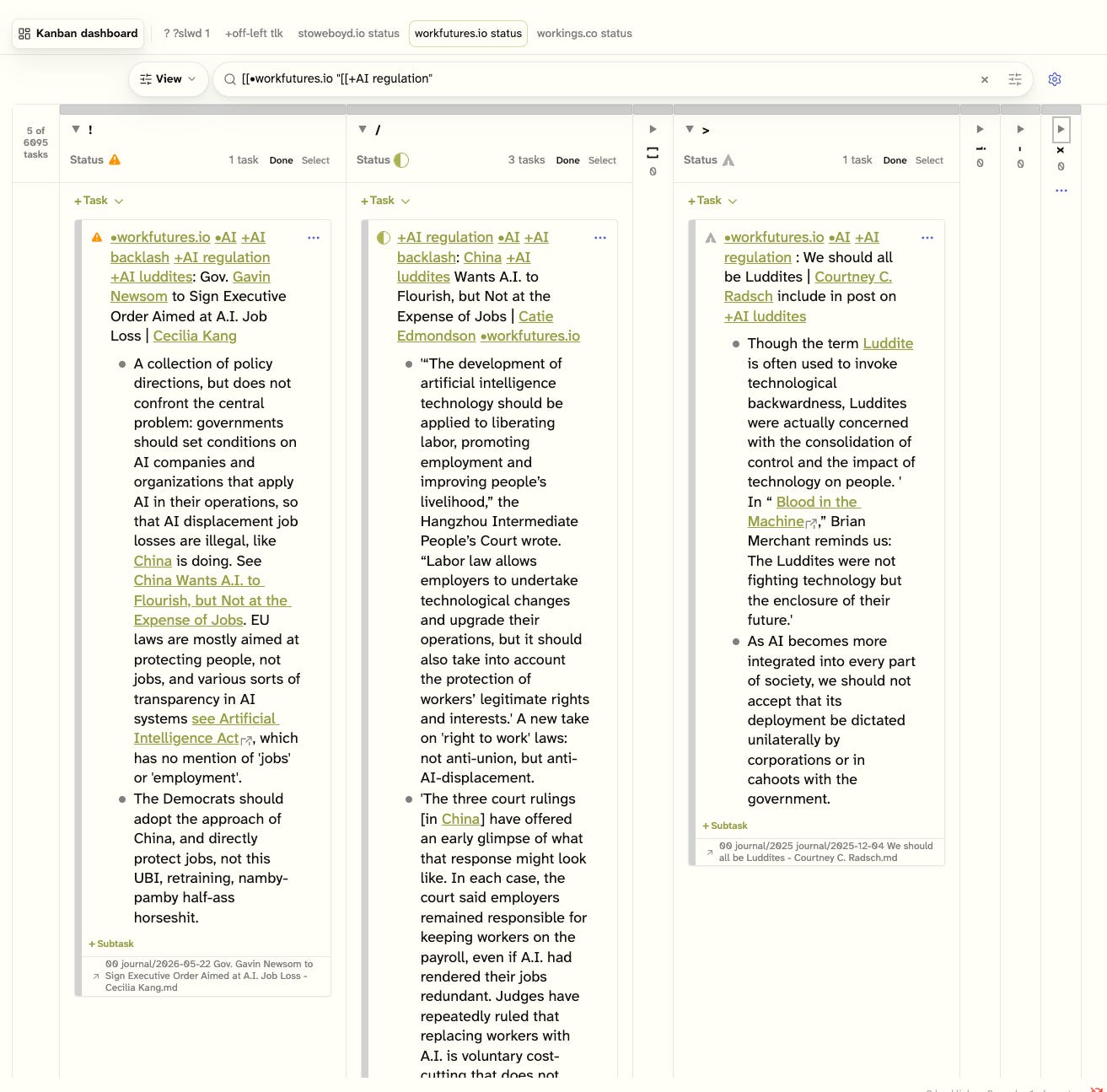
At the top, there is a list of Kanbans, a sort of dashboard used for navigation, with the current Kanban highlighted.
The second line is a filter, by which I pull out tasks marked as •workfutures.io project tasks also marked as linked to the concept +AI regulation. (In recent months, the plugin has been extended to support multiple tokens to search for, but at present it only supports AND logic: no OR or negation. Also note: the +AI regulation search term must be in quotes because the string has a blank in it. )
The result of the search is displayed in the Kanban board. Note that the tasks are placed in their respective task status columns. The upper right is the example article shown earlier.
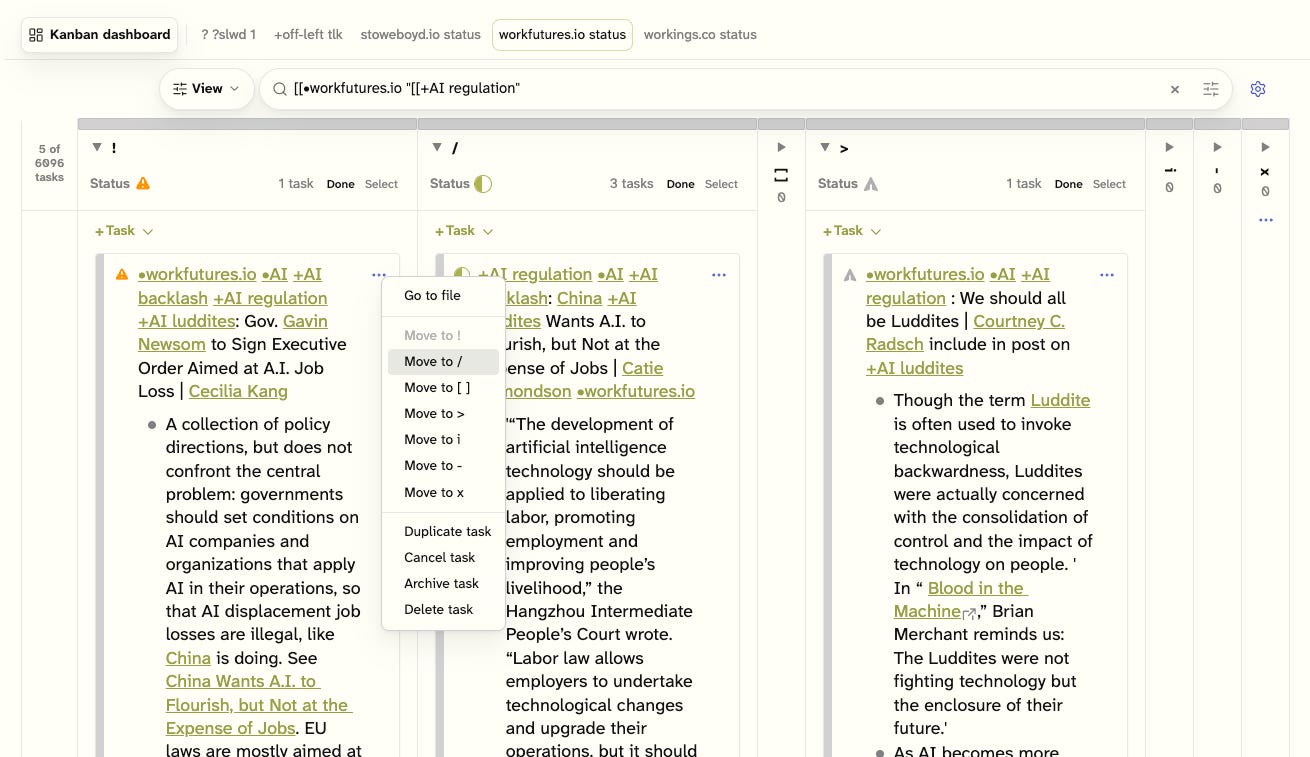
Dragging tasks from one column to another or moving by using the pull-down menu (as shown below) not only moves the item to another column, it updates the task status to the column’s title, not just in the Kanban, but in the original file the task is in:
A Word About Subtasks
I mentioned earlier that TLK supports subtasks: any two-space indented list item immediately following is treated as attached in a parent child relationship with the parent task. A newline ends the list of subtasks. In these examples I have only been attaching bulleted text, but child tasks are supported as well. See the right bottom, below, where the selected subtask is shown.
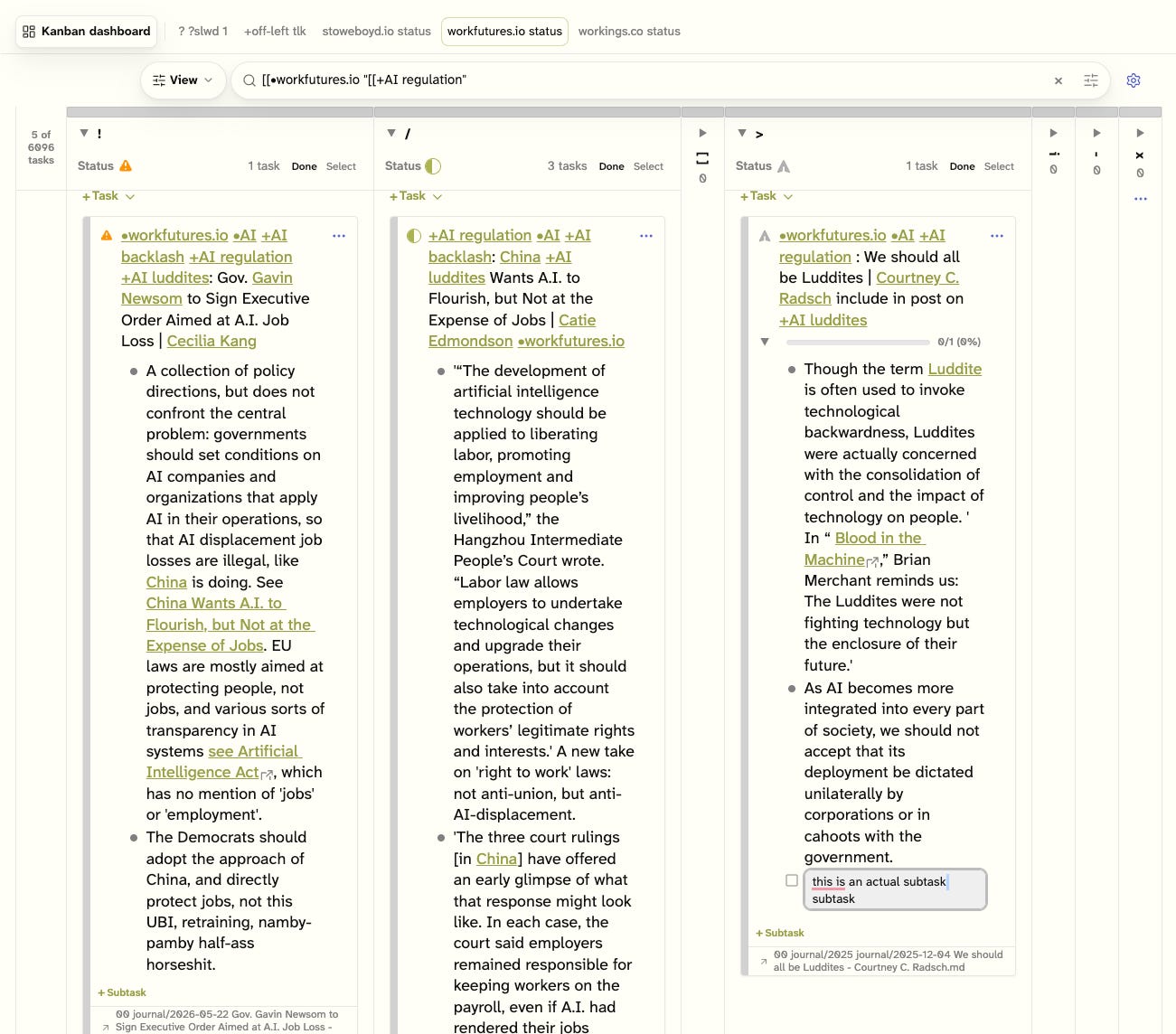
All of the subtasks, either real subtasks or bulleted items, can be edited, and the subtasks status can be changed by click-walking through all the task status options. Personally, I haven’t been using subtasks much, aside from the text ones, but that’s been a recent innovation: who knows where it might lead?
Conclusions
Task List Kanban is a killer tool for Obsidian task management, and one that is especially aligned with the way I do things in my notetaking sensemaking approach, Folio. As I said, I haven’t use the other modalities it supports aside from the tags-based inline tasks option, and I am extremely happy to be able to drop tag annotation for task status, and simply rely on task status markers.
I would like to see additional options for filters — like OR and negation in search terms — but as is it’s working well for me. Now I just have to get rid of all those tags…